User Manual
Everything Golf Time does for your golf game — and how to use it.
1. Why Golf Time
You already have people to golf with. Golf Time isn't here to replace them — it's here to get you more rounds with less back-and-forth.
Think about how a round actually comes together: a group chat, a "who's in?", someone checking course hours on one site and booking on another, a last-minute cancellation leaving an empty seat nobody fills. Golf Time puts all of that in one place, built specifically for Manitoba golf:
- Organize rounds in seconds — post a game, set the time and course, and your group sees it, joins it, and chats in one lobby. No more 40-message threads.
- Fill the empty seat — someone dropped out? Open the spot to compatible golfers nearby. You choose who joins; skill level and vibe matching mean no awkward pairings.
- Know every course — 670+ courses across British Columbia, Saskatchewan and Manitoba with scorecards, amenities, hours, and booking info. The course knowledge that used to live in your buddy's head, in your pocket.
- Keep your golf history — every round, every score (down to the hole), and the badges you earn along the way. Your Golf Resume grows with you.
- Golf all year — when the snow flies, Simulator Mode connects you with indoor golf around Winnipeg.
And it's free for golfers. Golf Time is built by Winnipeg golfers, for the Manitoba golf community — courses partner with us so that being a Golf Time member gets you perks on top.
2. Getting Started
Create an Account
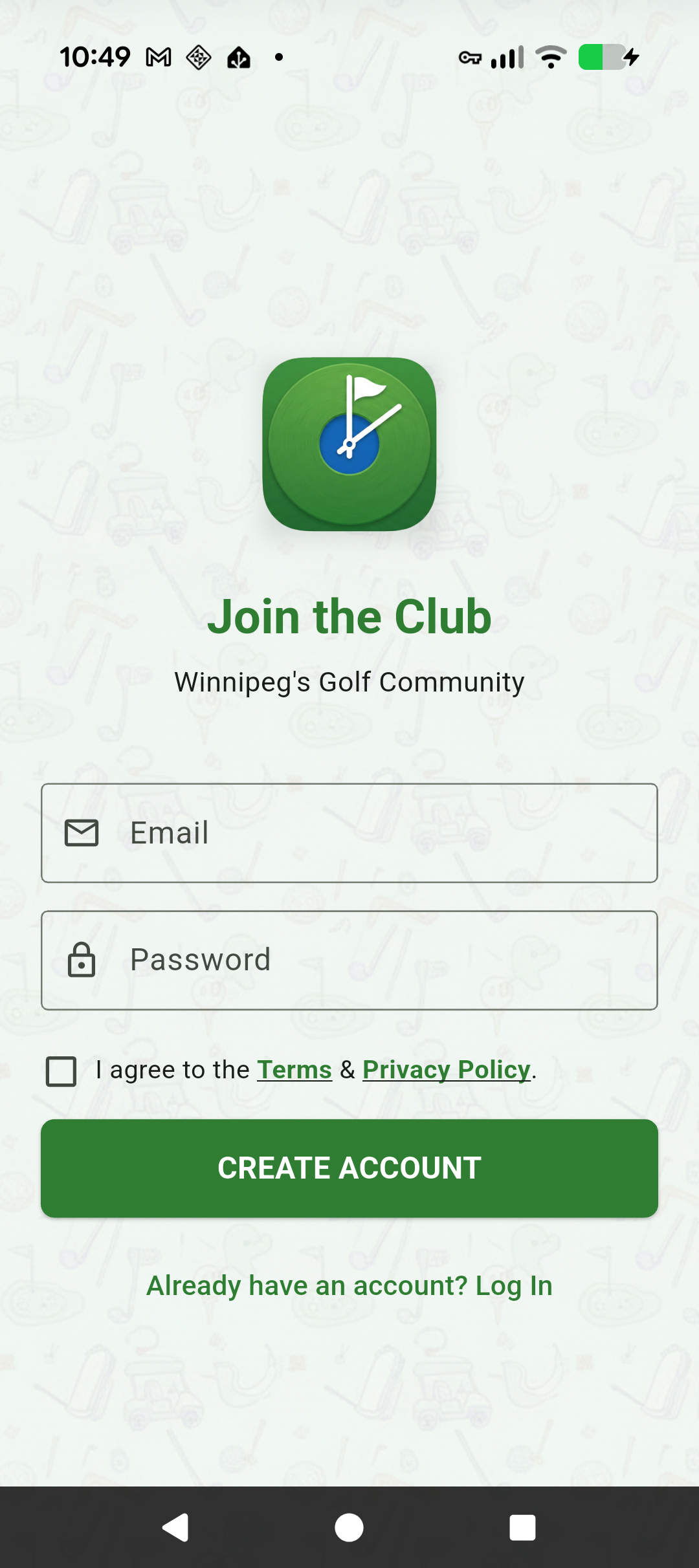
- Launch the app and tap "New to Golf Time? Create Account".
- Enter your email, create a password, and accept the Terms.
- Tap CREATE ACCOUNT.
Already registered? Your password manager works on the login screen — and if an email is already taken, the app offers a one-tap switch to Log In. Forgot your password? Tap "Forgot Password?" for a reset link.
Build Your Golf Resume (your profile)
Right after signup you'll set up your profile. Two fields matter more than they look:
- Skill Level (Newbie → Stick): honest is better — it's how other golfers know a game with you will be fun, not frustrating.
- The Vibe (Relaxed / Competitive / Strictly Business): are you out for beers and bogeys, a real match, or networking? Every game and every golfer carries a vibe, and it's the single best predictor of a good pairing.
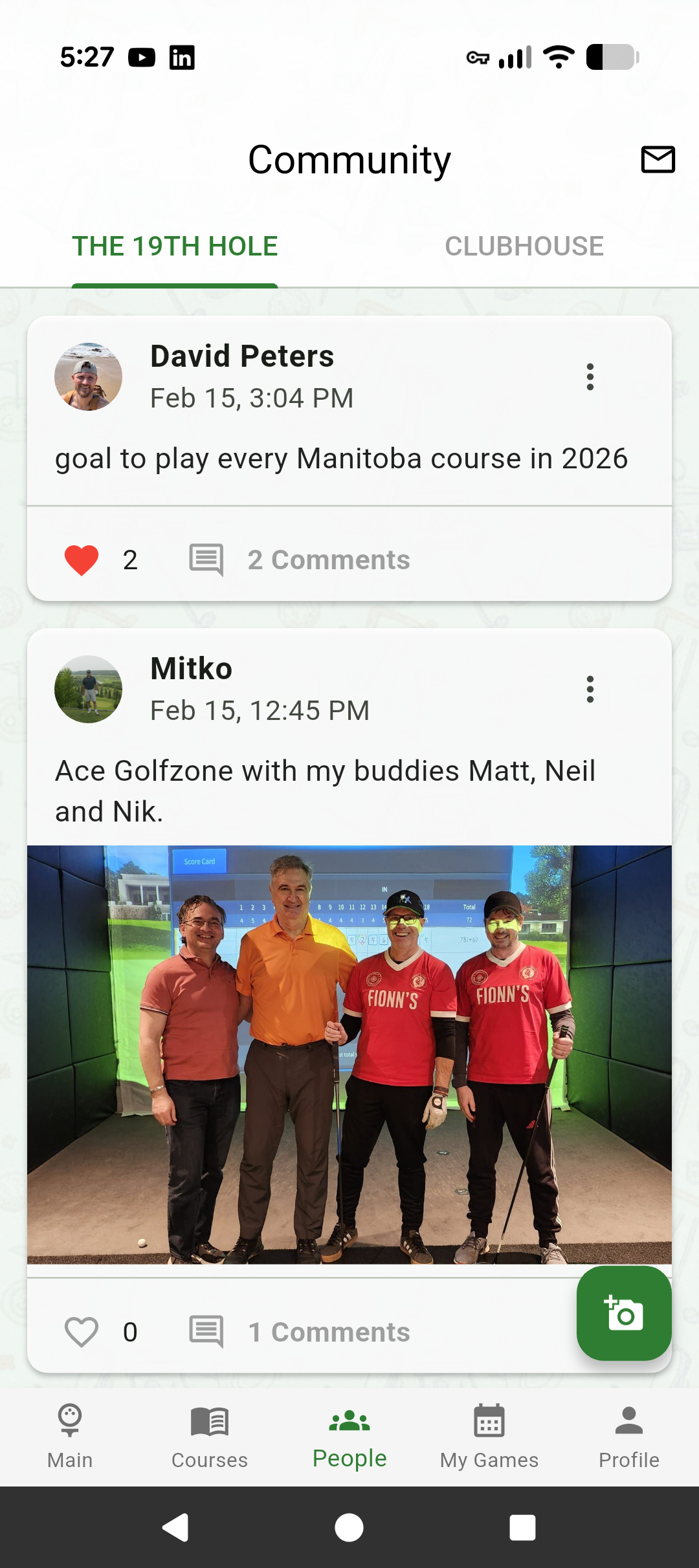
Add a photo and your home course if you like — both are optional and you can change everything later under Profile → Settings → Edit Profile.
4. Finding & Joining Games
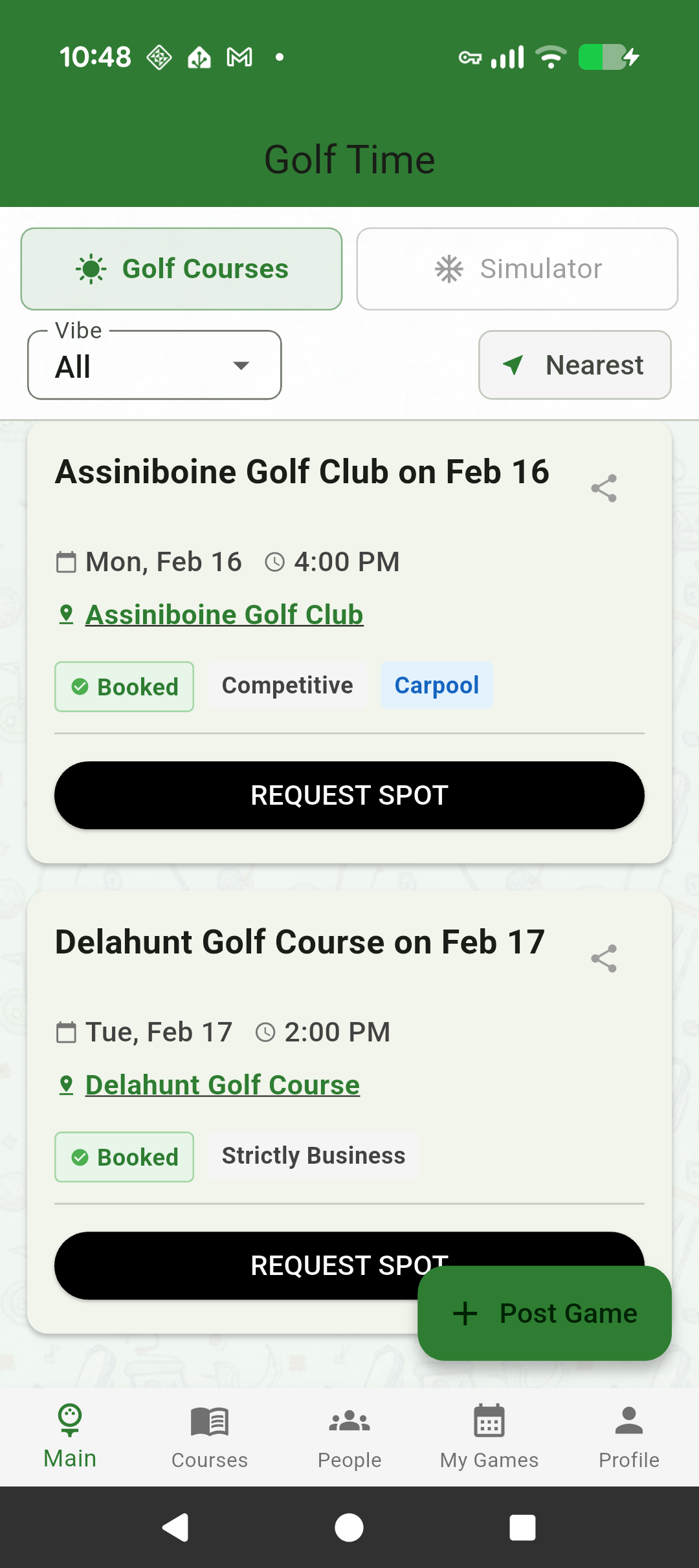
The Main feed shows real rounds posted by real golfers near you.
Filter to your kind of golf
- Vibe: show only Relaxed, Competitive, or Strictly Business games.
- Nearest: sort by distance from you.
- Ride-Share: only games offering or requesting a carpool.
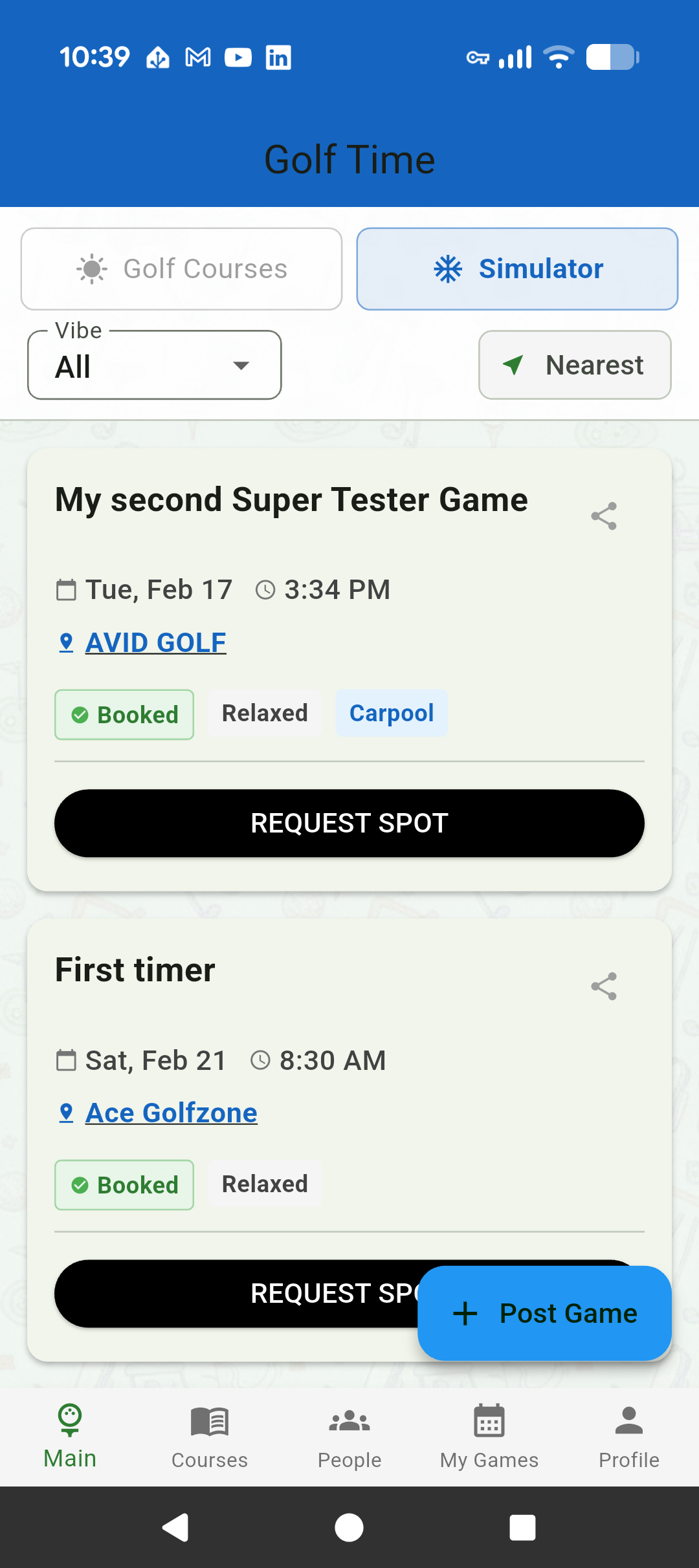
- ☀️ Golf Courses / ❄️ Simulator: outdoor or indoor golf (the app turns blue in Simulator Mode so you always know where you are).
Join a game
- Tap a game card to see the course, time, host, and who's playing. Tap any player's avatar to see their profile — skill, vibe, badges.
- Tap REQUEST SPOT. The host gets notified and approves requests, so every foursome stays the host's call.
- Once accepted, the game appears in My Games and you're in the lobby chat.
5. Hosting a Game
Hosting is how you put your round on the map — whether it's just for your crew or open to new players.
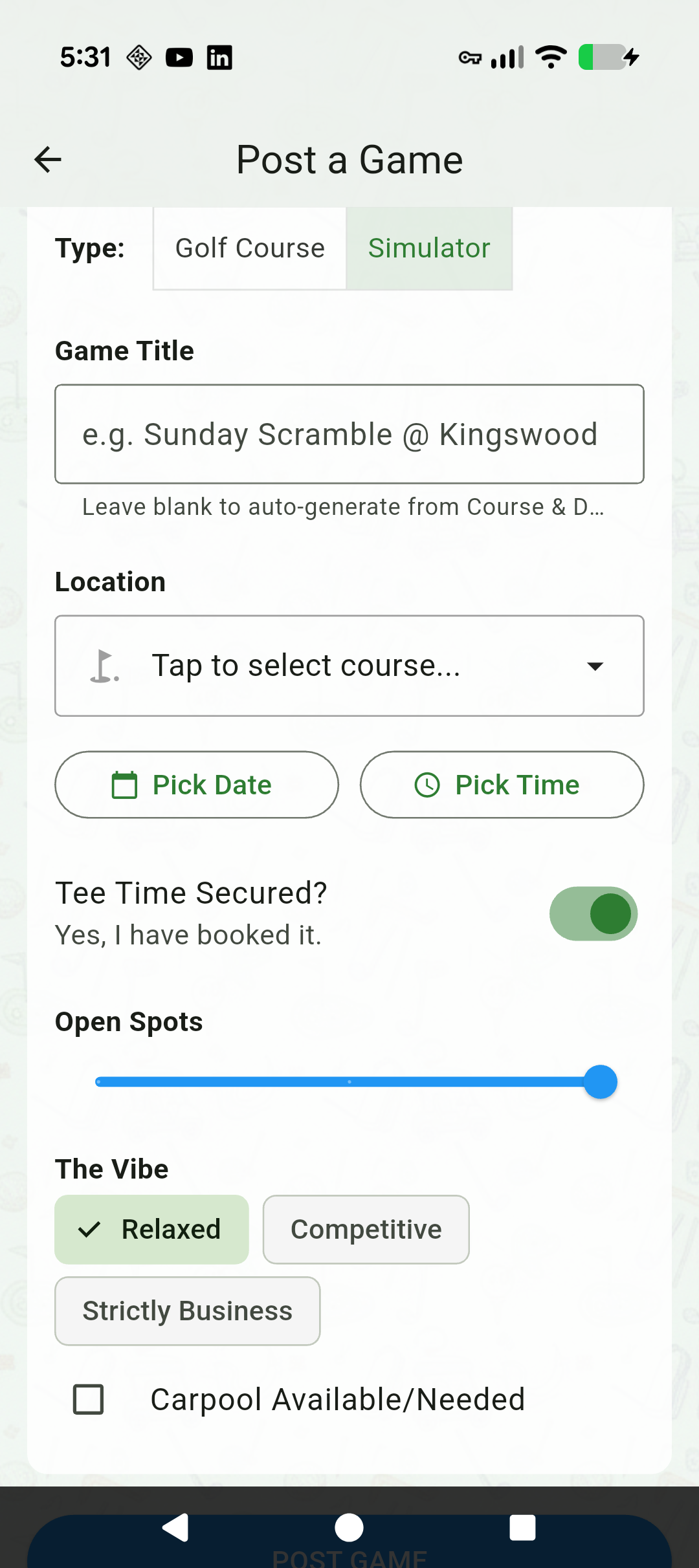
- Tap + Post Game on the Main tab.
- Select Course: search 670+ courses by name or town.
- Date & Time: when you're teeing off.
- Game Details:
- Tee Time Secured? — toggle on if you've already booked, so joiners know it's locked in.
- Open Spots: 1–3 seats to fill.
- Vibe: set expectations up front.
- Carpool: offer a ride or ask for one.
- League Round: playing in a league? Mark it — league rounds feed your league's records at participating courses.
- Tap POST GAME, then approve join requests as they come in.
6. The Lobby & Chat
Every game has a lobby — the group chat for that round.
- Chat with photos: coordinate details, drop a screenshot of the forecast, or share the post-round scorecard pic. Tap any photo to view it full-screen.
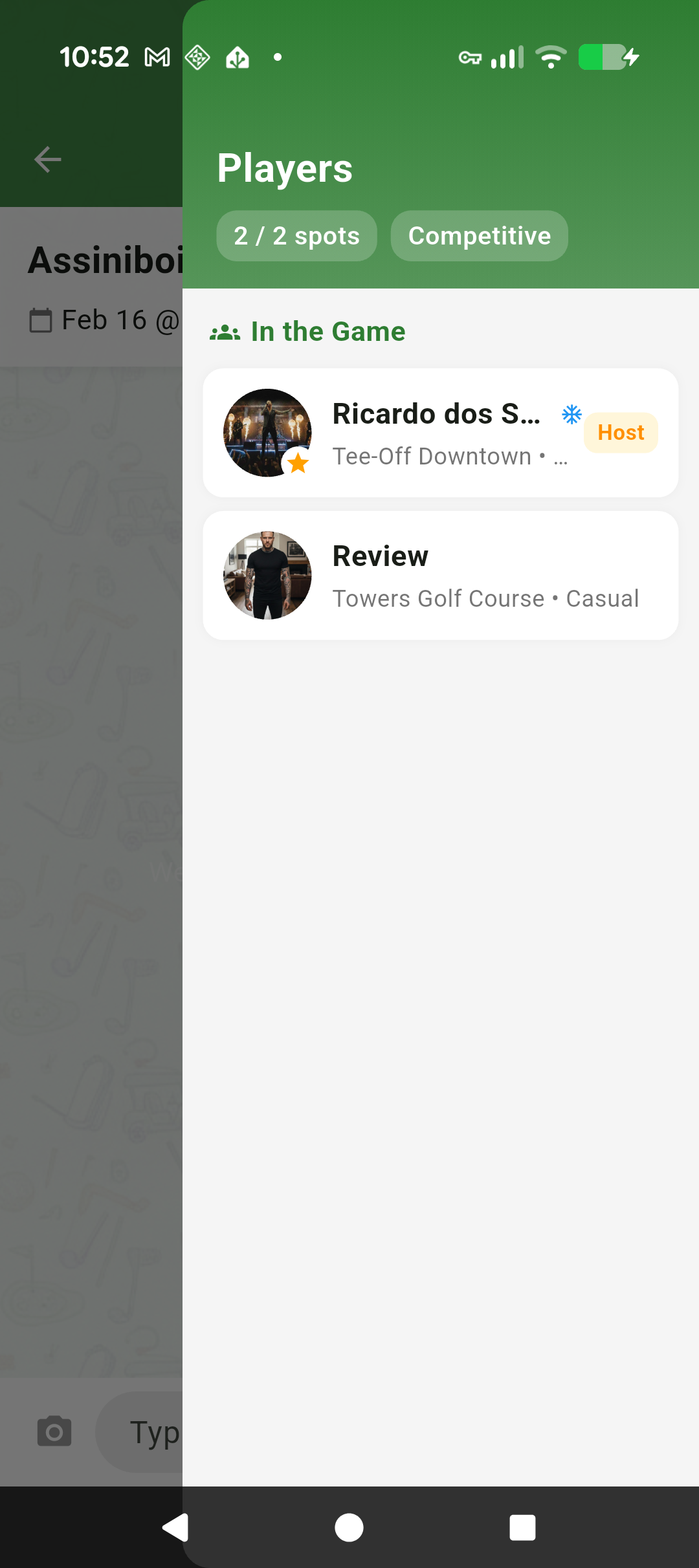
- Player list: see everyone in the round; tap a player to view their profile.
- Direct messages: message any golfer one-on-one from their profile — same rich chat, private.
- Unread badges: the My Games tab shows a count when a lobby has messages you haven't seen.
7. Your Schedule
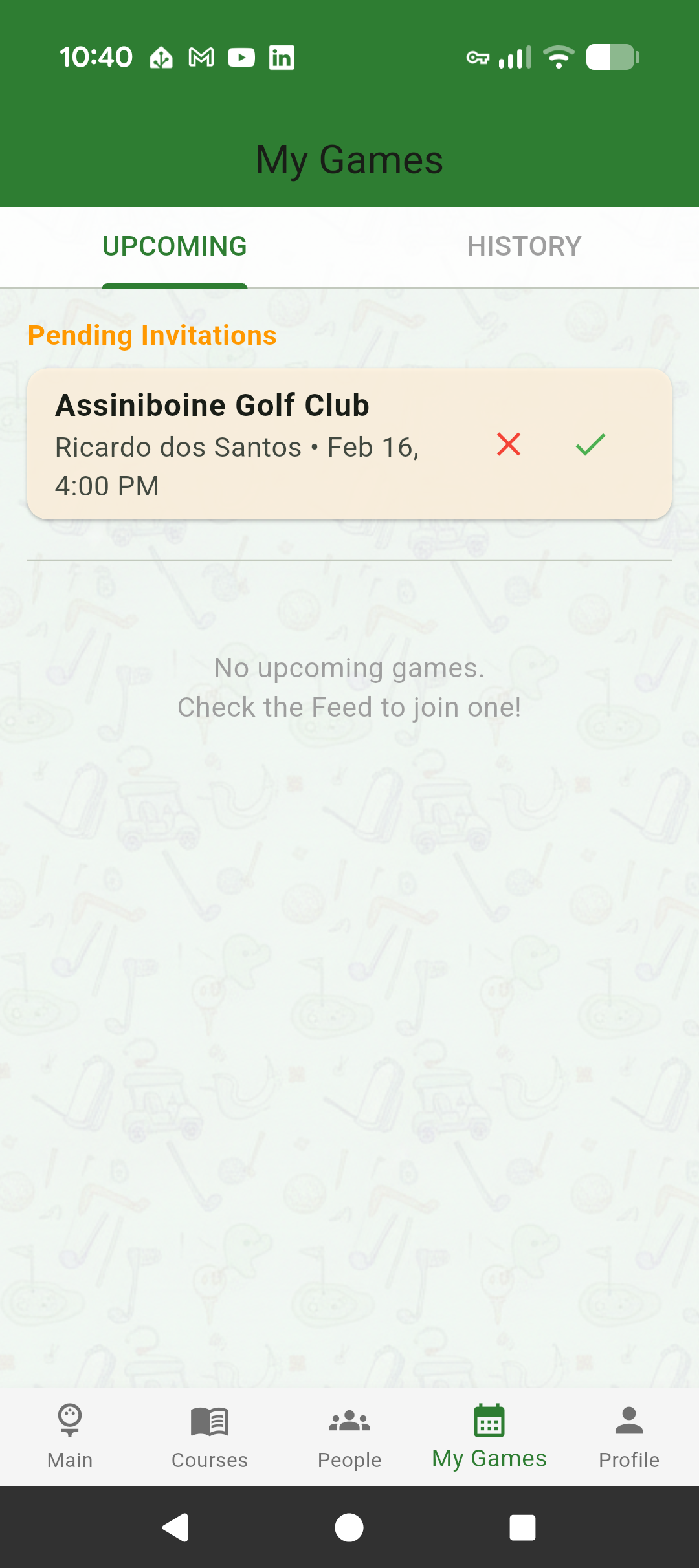
The My Games tab is your golf calendar.
Invitations
Pending invitations and join requests appear at the top — Accept or Decline in one tap.
Upcoming
Every round you're hosting or joined, with course, time, and lobby access.
Past Games
Your played rounds live here too — and this is where you record your score after the round (next section).
8. Scores, Resume & Badges
Golf Time remembers your golf so you don't have to.
Record your score
- After a round, open the game in My Games → Past and tap Add Score.
- Enter your round total — or go hole-by-hole: on courses with scorecard data, the app shows each hole's par and colors your score over or under as you type.
- Your score is visible to you and the players in that game — there are no public leaderboards. It's your record, not a ranking.
Your Golf Resume
The Profile tab collects it all: rounds played, scores, your level and XP, and your badge collection. Next Unlocks shows exactly what to do to earn the next badge — host your first game, play a winter round, explore new courses. Earned a badge you're proud of? Feature it on your profile.
9. The Course Directory
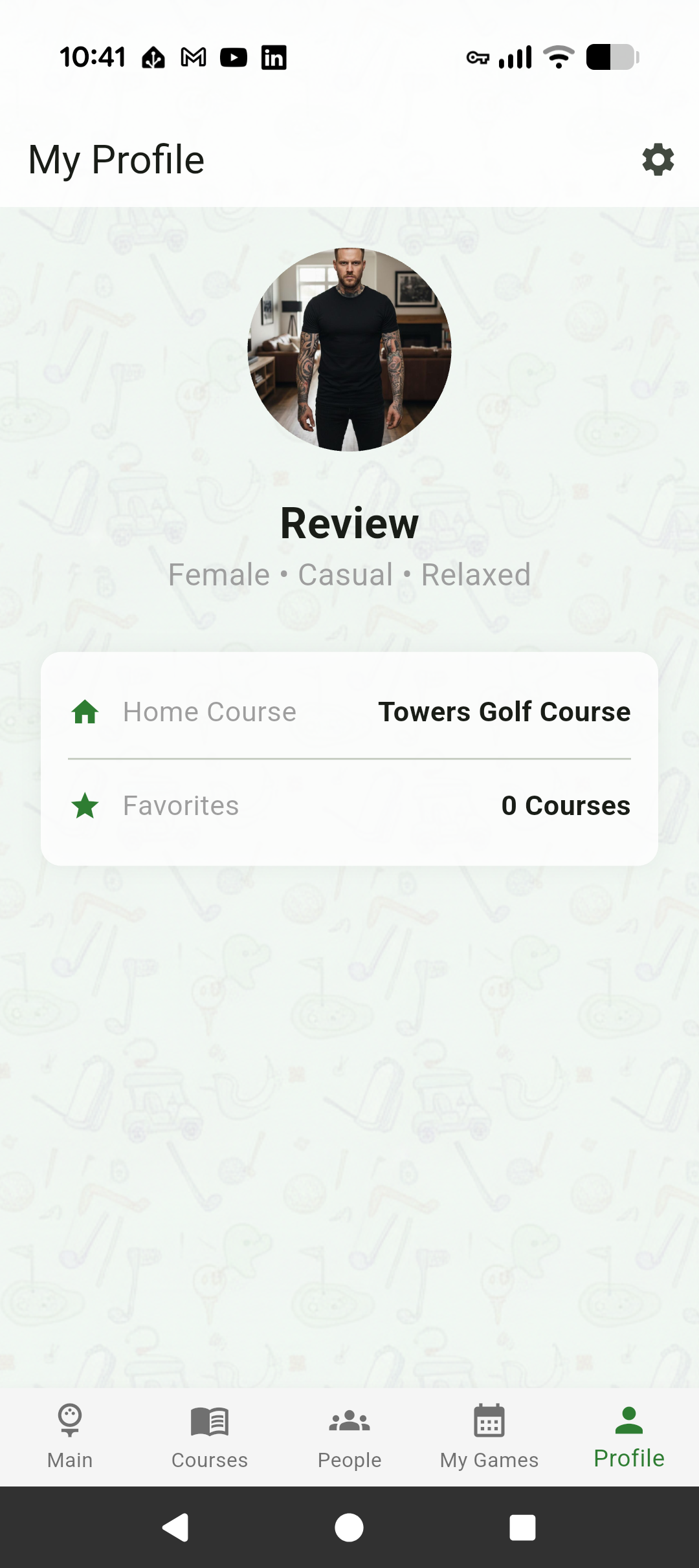
Every Manitoba course, actually filled in — not a bare pin on a map.
- Search by course name, town, or region ("Winnipeg" finds everything in the city).
- Course pages show the full scorecard with par for every hole, amenities (driving range, pro shop, rentals…), opening hours, contact info, and a Book button that takes you to the course's own booking.
- 27-hole courses are handled properly — each nine has its own loop on the scorecard.
- Favorites: star the courses you play; they surface first.
- Simulators: toggle to indoor venues for winter golf.
10. The 19th Hole & Your Clubhouse
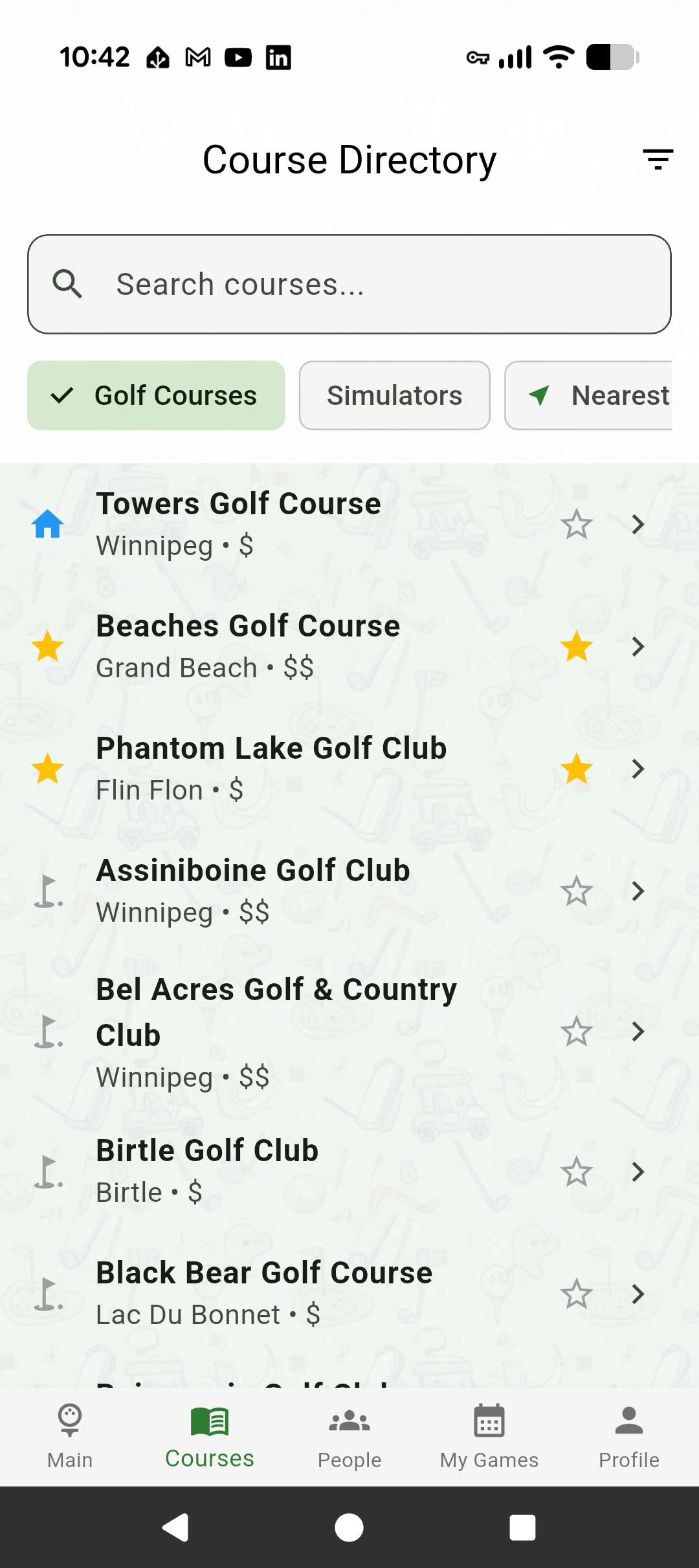
The People tab is where Manitoba golf hangs out between rounds.
The 19th Hole
The community feed: post your round highlights with photos (shown full-size, no awkward cropping), like and comment on other golfers' posts. Course conditions, brag shots, equipment questions — it all lives here.
The Clubhouse
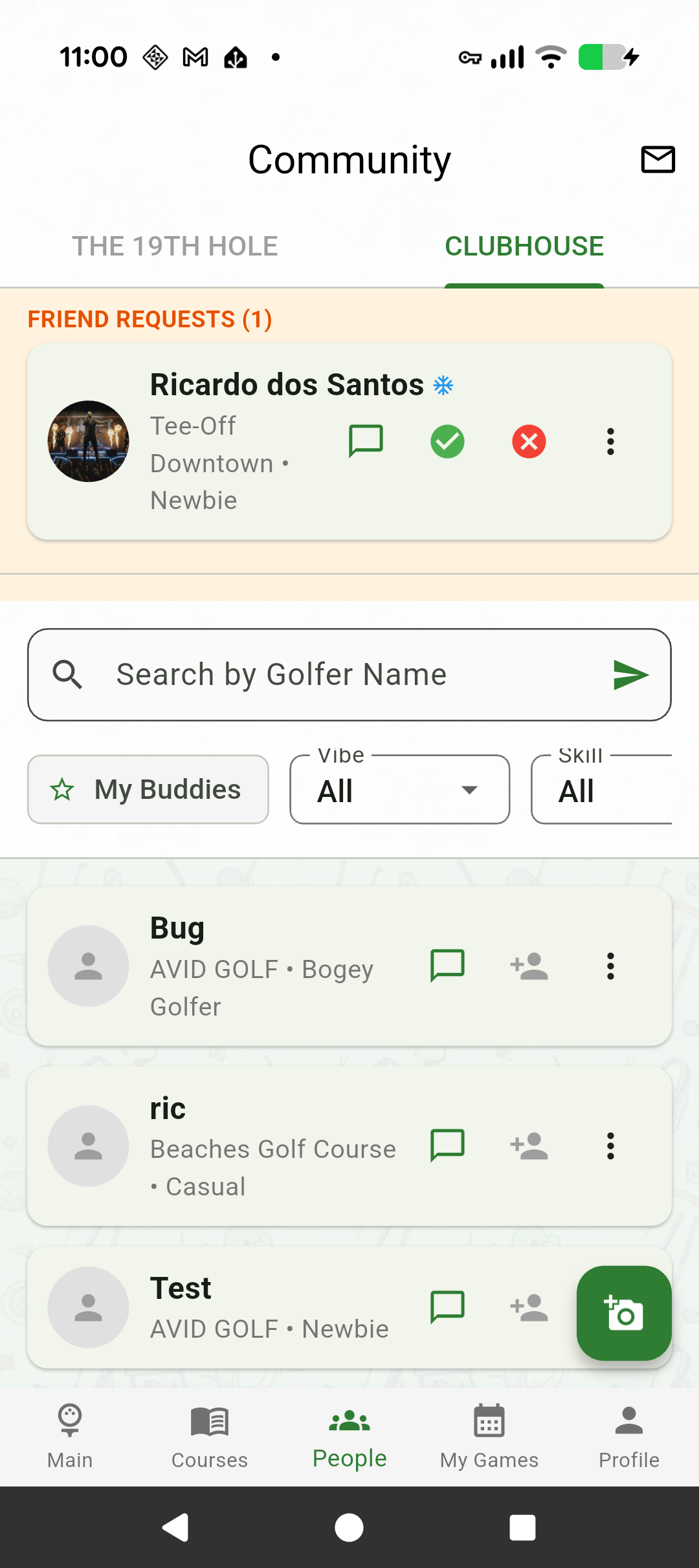
Your golf network: search golfers by name, filter by skill or vibe, and add friends. Tap anyone, anywhere in the app, to see their profile card.
11. Your Profile, QR Code & Member Perks
Met someone on the course?
Open your Profile and tap SHARE PROFILE — your personal QR code appears. They scan it with their camera, and your profile opens on their phone (with download buttons if they're new). Connecting after a great random pairing takes five seconds.
The Member Card
Tap SHOW MEMBER CARD for your full-screen Golf Time membership card. At partner courses, show it at the counter to redeem member perks — like the member discount at Southside Golf Course, our first partner.
Share games too
Every game has a share link (see section 5) — send it by text, and it opens straight into the game lobby for app users.
12. Winter & Simulator Mode
Manitoba winters are long. Your golf season doesn't have to be short.
Flip the toggle at the top of the Main feed to ❄️ Simulator — the app turns blue and everything switches to indoor golf: simulator venues in the directory, simulator games in the feed, same hosting and joining flow. Mark yourself a Winter Warrior on your profile so indoor golfers can find you (and yes, there's a badge for playing through the winter).
13. Safety & Your Account
Playing with strangers, safely
- Hosts approve every join — nobody enters your round uninvited.
- Block or report any user from their profile. Reports are reviewed, and repeat offenders are removed automatically under our three-strike policy.
- Blocked users can't message you or join your games.
Your account, your data
- Notifications: Profile → Settings — push and email toggles.
- Edit profile: change your photo, vibe, skill, or home course anytime.
- Delete account: Settings → Delete Account removes your account and profile data permanently — self-service, no email required (we verify your password first).
Still have questions? Contact Support · or use Golf Time in your browser at app.golftime.tech